

Image Sizing for Forum Posts
IMHO: Sometimes it makes for an easier read and understanding of the problem
if the image posted is a bit smaller.
In the same token sometimes the image needs to be larger . . .
especially if the text is too small to read when the image size is reduced.
Just in case anyone needs to know how to make images (PNG, JPG, TIFF . . . etc)
that they want to post to the forum smaller or larger this may be done in the macOS application 'Preview'.
I’ve listed the steps below.
1 Open the image (file. document) on your desktop.
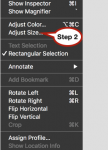
2 In the Apple Main Menu choose Tools > Adjust Size.
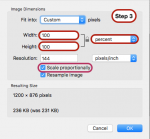
3 In the dropdown adjust the size.
5 If the size isn’t to your liking undo (Command + Z) and repeat steps 1 thru 4.
My Best
Jeanny
IMHO: Sometimes it makes for an easier read and understanding of the problem
if the image posted is a bit smaller.
In the same token sometimes the image needs to be larger . . .
especially if the text is too small to read when the image size is reduced.
Just in case anyone needs to know how to make images (PNG, JPG, TIFF . . . etc)
that they want to post to the forum smaller or larger this may be done in the macOS application 'Preview'.
I’ve listed the steps below.
1 Open the image (file. document) on your desktop.
2 In the Apple Main Menu choose Tools > Adjust Size.
3 In the dropdown adjust the size.
Usually I find the easiest way to use the drop down is use Percent.
- Make sure Scale proportionally is checked.
- Change the Width percent numbers to the degree you want the image size to change.
- (because Scale proportionally is checked the Height will follow suit).
5 If the size isn’t to your liking undo (Command + Z) and repeat steps 1 thru 4.
My Best
Jeanny
Attachments
Last edited:
