Warp Modifier

Rick82

0
Messages
130
Warp Modifier

Hi Guys,

Can someone clue me in as to how the relationship between the Pink width and height box and the blue curvature lines work together in the Warp Modifier?

The reason that I am perplexed is that making numeric changes in the pink component seem to be virtually identical to certain changes in the blue component.

I was hoping there was some mathematical relationship that would allow me to specify the exact location of endpoints, edges etc. if I really needed to fly by the numbers.

I suppose I can just guess at it, but it would be nice to know if there is a known relationship between the two.

Thanks in advance,

Rick
 

Attachments

  • Screen shot 2009-10-17 at 10.22.03 AM.png
    Screen shot 2009-10-17 at 10.22.03 AM.png
    109.2 KB · Views: 392
The warp is mapping the pink to the blue -- that seems pretty straightforward.

The way scaling works is ... well a bit odd ... since it scales the input (pink) and output (blue) which is not exactly what you expect (most modifiers give you explicit "cage" controls). The easiest thing is not to scale the modifier but simply use a "unit" original and mess with the other parameters.

The numerical stuff describes the shape of the blue piece. Basic geometry.

Cenital is an odd word -- not English. I think the word should be lateral -- as "latitude" and it only applies if you choose "spherical" warp. If you warp a plane from -180 to 180 and -90 to 90 you get a sphere.
 
The warp is mapping the pink to the blue -- that seems pretty straightforward.

The way scaling works is ... well a bit odd ... since it scales the input (pink) and output (blue) which is not exactly what you expect (most modifiers give you explicit "cage" controls). The easiest thing is not to scale the modifier but simply use a "unit" original and mess with the other parameters.

The numerical stuff describes the shape of the blue piece. Basic geometry.

Cenital is an odd word -- not English. I think the word should be lateral -- as "latitude" and it only applies if you choose "spherical" warp. If you warp a plane from -180 to 180 and -90 to 90 you get a sphere.

Thanks Pod.

Actually I do find it a bit strange that the Pink sizing box only effects my example rectangle in width not in height.

But whatever, I suppose I'll get used to it.

Thanks for the input.

Rick
 
While we are on the subject…

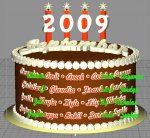
While we are on the subject, I'm using it to wrap some sugar lettering onto a cake for a school newsletter.

(aside: is it Warp or Wrap? The menu item says Wrap, but the help says Warp. They are the same thing, right?)

I've got several lines of text, but I can't seem to find a way to apply a single warp modifier to several text objects. I know I could convert the text to polys and import them all into a single object, but then I couldn't reuse the model with different text each month.

Also, the lettering is actually two sets of text super-imposed so I can have easy dual-color letters (see below). So, for 4 lines of dual-color text, I have to have 8 warp modifiers that I keep in-sync with each other.

Is there a way to group text objects (or any objects for that matter) such that they are still individually editable, but all are warped together with a single modifier?

Alternatively, is there any way to "bind" the values of two objects to the same setting such that it can be controlled from a single place? I guess I'm asking for something like the materials node editor, but to control various parameters of any objects and not just materials. (For the record, I am a big fan of the materials node editor, but I'm more of a programmer than an artist.)

Since a picture is worth a kiloword:

Cake.jpg

Thanks,
- Dean
 
Have you tried selecting the side of the cake that would have the names on it, splitting it and moving it away from the cake slightly, and then have a transparent texture with the names on it applied to the split? You can then try to extrude that split a bit to get the 3D look. Not sure if this would work, but it might be worth a try. It certainly would make the curvature exact.
 
Have you tried selecting the side of the cake that would have the names on it, splitting it and moving it away from the cake slightly, and then have a transparent texture with the names on it applied to the split? You can then try to extrude that split a bit to get the 3D look. Not sure if this would work, but it might be worth a try. It certainly would make the curvature exact.

I hadn't thought of extruding a texture with transparent areas, but that might work. It could simplify the workflow a bit, since somebody else gives me the names, I could just have them give me a .psd with the text just they way they want it. Thanks for the suggestion; I'll give it a try.

I'm still interested in learning how to have a wrap modifier apply to a group of objects, though. Seems like something that should be doable, but I just haven't figured it out yet.

Cheers,
- Dean
 
I'm still interested in learning how to have a wrap modifier apply to a group of objects, though. Seems like something that should be doable, but I just haven't figured it out yet.

Cheers,
- Dean

In that case, you could make the objects children of one, and then warp. I do that sometimes if I'm in a similar situation. Just make them all editable, drag all under one, and then import children. Delete the ones underneath in the object browser, and then you can warp them as a group. I'm still curious about the first option, so if you decide to do that, let me know how it works.
 
Last edited:
In that case, you could make the objects children of one, and then warp. I do that sometimes if I'm in a similar situation. Just make them all editable, drag all under one, and then import children. Delete the ones underneath in the object browser, and then you can warp them as a group.

I know that will work, but then I can't go back and change the text. I'm trying to come up with a simple model that I can update each month to create new clipart for the newsletter. It works as-is (with 8 warps), but it is cumbersome so I was just looking for something better.

Thanks,
- Dean
 
Well I tried extruding the texture, and doing the shell tool. Neither works. The shell is as close as it gets, but the problem with Cheetah is that it doesn't provide a solid all the way through and if you're using a transparent texture front of another (seeing through a transparent plane and then through another), that also does not work. It doesn't handle seeing transparent objects through other ones.

Your best best is to do each word individually, then make copies of them in a group. Hide and/or lock one group for safe keeping. Then make the objects in the other one children of one and warp. If you need to change names, you simply change them in the locked one (unlocking it of course), then repeat the process, except this time, you'll already have the right warping in place from the last. From what I understand, Modo would be a good tool for this kind of thing.
 
Back
Top